


Feedonomics Surface
Install on BigCommerce — free and ready in minutes.
Feedonomics Surface
Install on BigCommerce — free and ready in minutes.
Your stack, upgraded.
Connect the dots so your systems move like one engine.

Blog

Guides, Reports, & Whitepapers

Webinars

Press Releases
AI isn’t assisting discovery. It’s rewriting it.
Explore how AI is reshaping shopper behavior — and what brands must do to stay visible.
Feedonomics’ feed specialists operate as an extension of your team to handle feed setup, product listing, catalog optimization, and ongoing, 24/7 support.

is a full-service feed management solution that streamlines product listing, feed optimization, and data synchronization for hundreds of shopping channels, including Facebook. Our solution includes a team of dedicated feed specialists who provide:

Let us do the heavy lifting, including product listing, optimization, categorization, integration setup, scheduling, and more.

Expect fast responses from knowledgeable feed pros.

Review ecommerce goals, service requests, and upcoming product launches with your dedicated feed manager

Receive proactive and impactful recommendations with regular feed maintenance.
As a merchant, or an agency who supports one, you shouldn’t have to dedicate time and resources to cleaning up product data, setting up exports, troubleshooting errors, and learning feed requirements just to manage your product feeds. Your time is valuable, so spend it doing what matters most.With Feedonomics, you get personalized service and Facebook expertise from a team of feed management specialists. We do the hard work for you, leaving you free to refine your marketing strategy, strengthen your brand, and sell more products.

Use Feedonomics to connect your product data from Shopify, Magento, Netsuite, BigCommerce, and many other platforms to Facebook Ads Manager.
Prepare your ad campaign for better results. Feedonomics for Advertising optimizes your Facebook product catalog to make sure it’s search relevant, readable, and has increased potential for conversions.Our team reviews and optimizes your product data to ensure compliance with Facebook’s requirements and best practices for:

Listing your products on Facebook is only the start of a well-executed ecommerce strategy. Feedonomics for Advertising leverages our flexible platform and powerful features to help you maximize campaign performance across multiple channels.
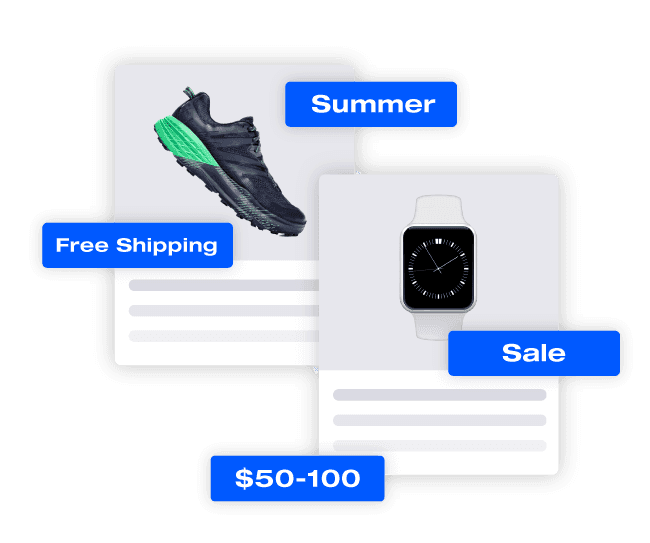
Our team doesn’t just address feed errors—we help you avoid them. Feedonomics for Advertising has a custom alerting system to detect potential issues, and our feed specialists work with you to resolve problems quickly so you don’t lose out on sales.

A Facebook product feed is a data file that contains structured product information such as titles, descriptions, images, prices, availability, and more. It is used to create and manage a product catalog for displaying products in Facebook Shops, dynamic ads, and other Meta Commerce features.
Facebook supports multiple file formats for product feeds, including XLSX, CSV, TSV, XML (RSS/ATOM), and Google Sheets. The choice of format depends on ease of management and automation preferences.
Facebook requires specific fields for each product, including:
ID (Unique product identifier)
Title (Clear, keyword-rich product name)
Description (Detailed product information)
Link (The link to the item’s specific product page on your business’s website)
Image_link (High-quality image URL)
Availability (e.g., “in stock”, “out of stock”)
Price (Including currency code, e.g., USD)
Condition (New, refurbished, or used)
Brand (The brand name of the item)
A manual feed upload is a one-time process where you upload your data file manually. A scheduled feed allows you to set an automated update frequency (e.g., daily or weekly) by providing a feed URL, ensuring your product information remains up to date.
Yes! Dynamic ads use product feeds to show relevant products to users based on their browsing behavior, intent, and interactions on your website. This requires setting up a Facebook pixel to track user activity.
To create a Facebook catalog, follow these steps:
Go to Commerce Manager.
Visit Commerce Manager on Facebook.
Create a New Catalog.
If this is your first catalog, click Get Started, then select Create a catalog and click Get Started again.
If you already have catalogs, click + Add catalog to create a new one.
Select Catalog Type.
Choose Online products (default option) if you’re selling products online.
If you’re using a partner platform (like Shopify, WooCommerce, or BigCommerce), toggle Connect a partner platform and follow the setup instructions.
Assign a Business Portfolio.
Select the Business Portfolio that will own the catalog. You must have full control over it.
Name Your Catalog.
Enter a name for your catalog and click Next.
Connect a Meta Pixel or App SDK (Optional).
If you have a Meta Pixel or SDK on your website or app, toggle it on to connect.
Click Next or Skip if you want to do this later.
Assign Permissions.
Click People → + Assign people to give team members access to the catalog.
For agencies or partners, click Partners → + Assign partner and enter their Business ID or share a link.
Add Products to Your Catalog. Choose one of the following methods:
Connect a Data Feed: Upload a CSV or XML file manually or schedule automatic uploads.
Manually Add Products: Enter product details manually.
Complete Setup.
Click Finish—your catalog is now created and ready for use.
Once your catalog is set up, you can use it for Facebook Ads, Shops, or other Meta services.
To optimize your product feed:
Use high-quality images (minimum 500×500 pixels).
Ensure accurate pricing and availability.
Write clear, keyword-rich product titles.
Use custom labels to segment products for better targeting.
Regularly update feed to avoid disapproved products.
Use optional attributes like sale price, color, material, and size to provide more details.
Optimize product descriptions with relevant keywords and compelling copy.
Ensure GTINs (Global Trade Item Numbers) and MPNs (Manufacturer Part Numbers) are included for better catalog matching.
Use product categories that align with Facebook’s taxonomy.
A/B test different images, titles, and descriptions to identify top-performing variations.
If your feed has errors, check the Diagnostics Tab in Meta Commerce Manager for issues such as:
Missing required fields (e.g., price, title).
Incorrect formatting (e.g., invalid currency codes).
Broken image links.
Outdated product data.
Fix the errors and re-upload the feed or update the source file to ensure compliance.
Complete the form and we’ll be in touch.


